Footage Organiser
Automatically copy or mirror files from one location into another, organising them along the way.
Download it
Completely free and licensed under GPL-3.0. Read the install notes below first — the app is not code-signed, so both operating systems will have something to say about it.
The Why and How
When I was vlogging, once a week I'd need to copy all the footage from different camera SD cards onto my hard drive. I'd organise it by year, month, day, camera and file type. Then I would need to wipe the camera SD cards and mirror my hard drive to my backup hard drive. This would all take me hours of manual work.
So I created this desktop app that automates the entire process. Now, I connect my SD cards and hard drives, then all the work happens automatically in the background.
How it works
Create Rules
Choose the Rule type
A rule can either be a copy or mirror rule. A copy rule copies the files over and organises them, it can then also delete the original files. A mirror rule just directly mirrors a folder and its contents to another location.
Choose the Origin and the Target
The Origin is the folder whose contents need to be copied or mirrored. The Target is the destination those contents are copied or mirrored to.
Say how it should be filed
For copy jobs, build the path inside the Target out of Year, Month, Day, volume name and file format, in whatever order you like. That is the folder structure the footage lands in, so it arrives filed rather than dumped.
Ignore some folders and files
Include and exclude lists for both files and folders, with wildcards, let you specify exactly which items in a folder should be copied.
Decide what happens after the copy rule
Every file is verified with a checksum after it copies, to confirm the data arrived intact. Only then can the original optionally be deleted.
Pick when the rule runs
Rules can run automatically in the background, or require you to manually start the copying or deleting with a table showing you which actions it will perform.
Run the Rules
Plug the drives in
Footage Organiser will detect when a drive has been plugged in, automatically checking to see if there is any work to do.
Read what is about to happen
After the evaluation phase, the rule details out the actions it will perform - each file to copy, each folder to delete. The rule then waits for it to manually started to perform these actions. If the rule was not set to wait, it will automatically begin performing these actions.
Start and Stop Rules
Whilst the rule is performing actions, you can start and stop the rule. This will just pause it in the middle of the actions it was performing.
Close the window
This program runs in the background, so you can close program's window and let it check for any work and perform any actions in the background. So you can focus on other activities. Don't forget to close the program through the 'Quit' button or in the tray to fully close it.
Manage Rules
Watch them all at once
The main window lists every rule with its Origin, its Target and what it is doing right now, so a rule that is waiting on you is visible without hunting for it.
Edit, Disable or Delete Rules
You can easily select rules to edit from the main menu, from here you can also choose to disable or delete the rule.
Check what a Rule did
Action logs are written to disk, allowing you to check what a rule did. These logs are cleaned up on a retention time you set.
Installing it
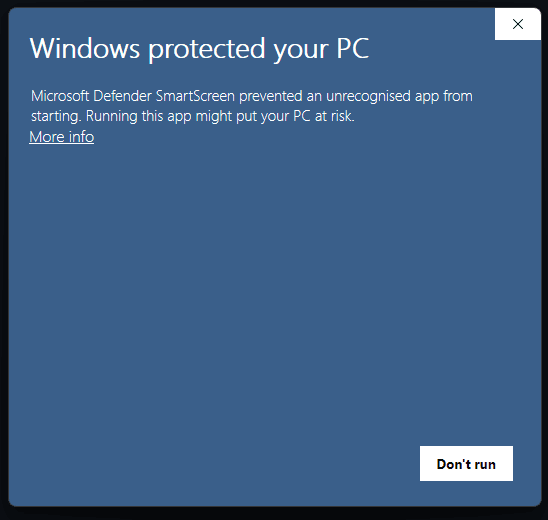
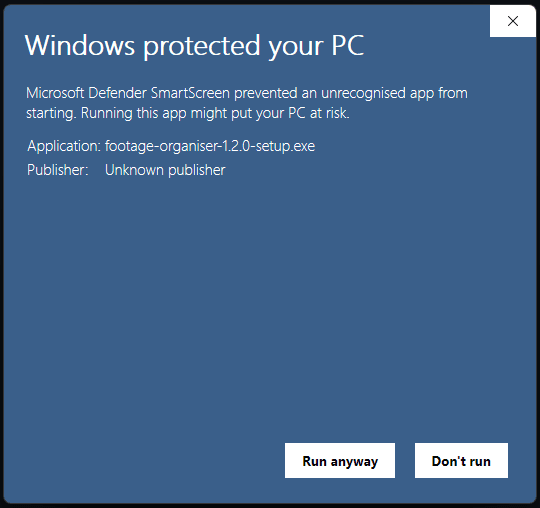
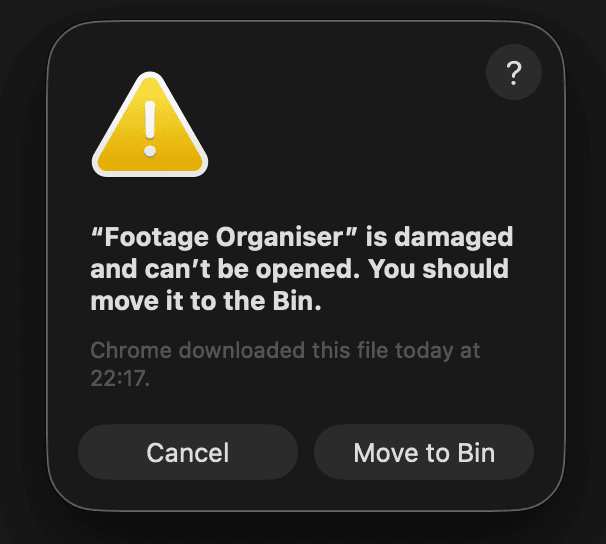
Neither build is code-signed. Signing certificates costs money every year, which is why I don't want to sign a free tool. So Windows and Mac will both give you concerning looking warnings.
Install on Windows
- Run the .exe File.
- This is the one. Click 'More info'.
- Then 'Run anyway', and it installs normally.
Install on Mac
- Open the .dmg and drag Footage Organiser into Applications, as usual.
- Open Terminal and run this:
xattr -cr "/Applications/Footage Organiser.app"Type the quote marks by hand rather than pasting them. macOS often converts straight quotes to curly ones on the way, and the shell will not accept those. - Open the app as normal.
Questions
Why does Windows say it protected my PC?
Because the installer is not code-signed, and signing certificates cost more than a free side project justifies. Click 'More info', then 'Run anyway'. The warning is about the absence of a paid certificate, not about anything found in the file.
Mac says the app is damaged. Is it?
No. macOS quarantines applications that have not been notarised by Apple, which is a paid yearly programme. Open Terminal and run: xattr -cr "/Applications/Footage Organiser.app" — then open the app as normal. Retype the quote marks by hand if you paste that command, because macOS often converts them to curly quotes that the shell will not accept.
Is there an Intel Mac build?
Not currently. The published macOS build is Apple Silicon only. Intel Macs would need the app building from source, which the repository has instructions for.
How do I update it?
Delete the old version and install the new one. There is no automatic updater, so it is worth checking the releases page occasionally.
Could it delete footage I wanted to keep?
Deletion is opt-in per rule, and nothing is removed until the copy has been verified with a checksum. If you would rather see the decisions before they happen, enable Start/Stop Actions on a rule and the app will list every pending action and wait for you.
Does it cost anything?
No. It is free and the source is public under the GPL-3.0 licence.